Connections
The organization page that connects the code host — the GitHub organization through the Madebook App, or a person's account through a token — narrows which repositories workspaces may pick, and issues the API tokens editors present.
Organization → Connections.
Two connections make Madebook work: your code host, and your editor. Here you connect the GitHub organization or account that owns the code — not a repository. Which repositories a workspace reads is chosen inside that workspace.
That sentence is the whole model. Connections is about who owns the code; a workspace's Repositories page is about which of that code the workspace reads. Nothing on this page attaches a repository to anything.
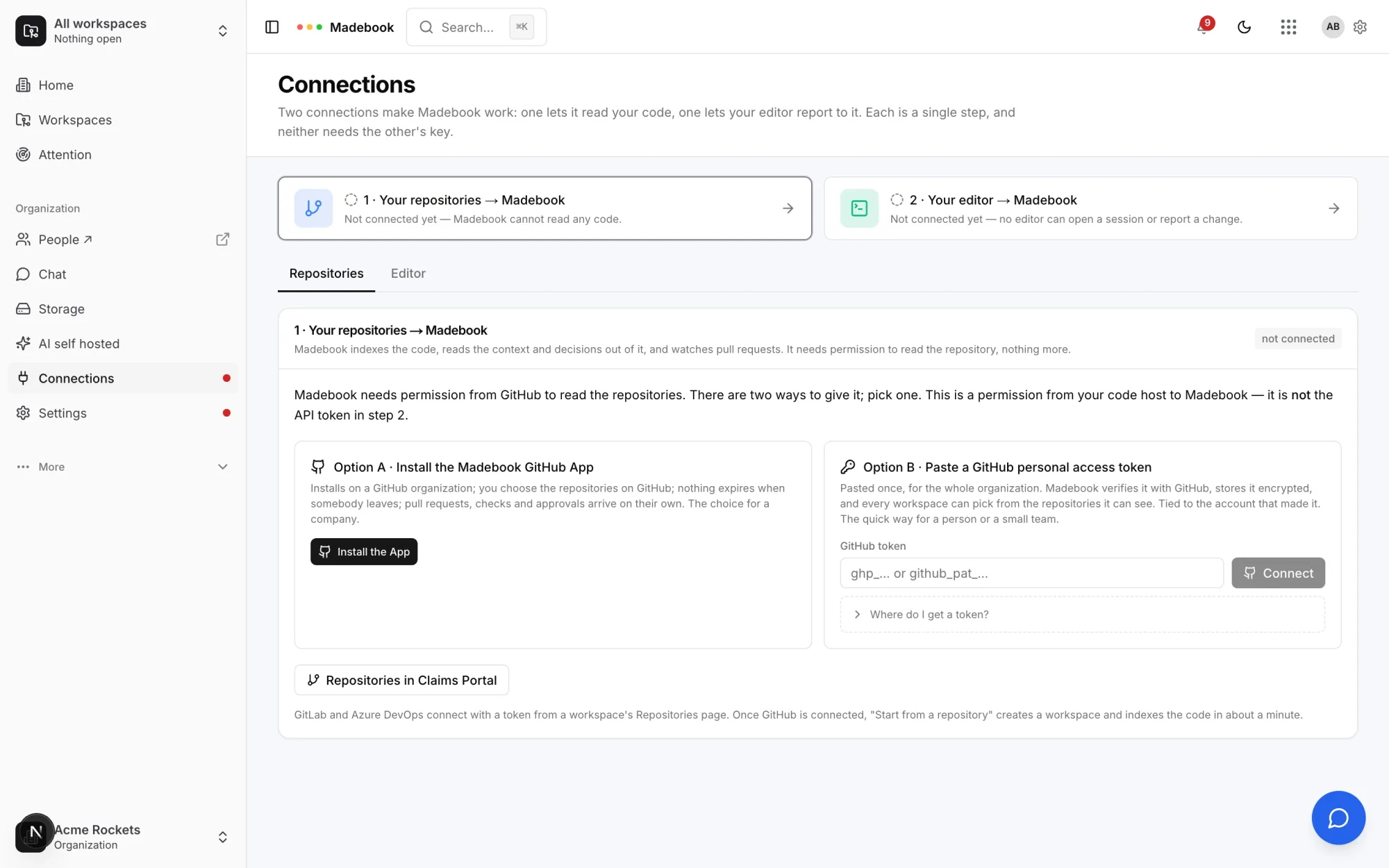
The two cards at the top are the state of the two connections — 1 · Your code host → Madebook and 2 · Your editor → Madebook — each reading connected, naming what is connected (bookbaghq · GitHub organization (App), AlexandrRich · GitHub account (token)) and how many repositories that reaches, or not connected yet with what that means. Clicking a card opens its tab. Everything on this page belongs to the organization: connect GitHub once and every workspace can use it.
Repositories
The tab opens with the sentence that clears up the most common confusion:
This step connects who owns the code, not a repository: a GitHub organization through the Madebook App, or a person's GitHub account through a token. Pick one. It is a permission from your code host to Madebook — it is not the API token in step 2.
Option A · Connect a GitHub organization — install the Madebook App
The organization's own connection. GitHub asks which of the organization's repositories the App may see; those become reachable here. Nothing expires when somebody leaves, and pull requests, checks and approvals arrive on their own. The choice for a company.
Install the App sends the browser to GitHub, which asks where to install — your own account or any GitHub organization you administer — then whether the App may see All repositories or Only select repositories. Press Install there and GitHub sends the browser straight back to this page:
GitHub App installed — its repositories are now offered to the organization
The installation then appears under Option A as a row — bookbaghq · GitHub organization, All repositories — 42 reachable · verified 40 minutes ago — with a link, Change which repositories the App may see, on GitHub, because that selection is GitHub's to keep. Connect another GitHub organization repeats the round-trip for a second one; each is its own row.
Option A is only shown once a platform admin has registered the App on this Madebook under Admin → Integrations. Until then a platform admin sees a link to do that, and everyone else sees Option B alone.
Needs repository.connect — owner and admin.
Option B · Connect a GitHub account with a personal access token
A token belongs to a person's GitHub account, not to an organization: it reaches whatever that account can see, across every organization it is in, and stops when the token expires or the person leaves. Verified with GitHub and stored encrypted. Fine for one person or a small team; a company should use Option A.
There is no such thing as an organization token on GitHub — a personal access token is always somebody's. That is the whole reason Option A exists.
Paste a token that starts with ghp_ or github_pat_ and press Connect. Where do I get a token? unfolds the help, because the obvious guess — GitHub's Create GitHub App form — is the wrong page:
- Quickest: a classic token. A link opens GitHub with
repo(read the code and the pull requests) andadmin:repo_hook(install the webhook so pull requests update instantly) already ticked. Set an expiry, generate, paste. GitHub shows it once. - Or: a fine-grained token. Choose the repositories Madebook may see; under Repository permissions give Contents, Pull requests and Metadata read access, plus Webhooks read and write.
The token is verified against GitHub before it is stored, and stored encrypted; only a hint is ever shown again. Each connected account is listed with its login and how many repositories it can see. The bin icon disconnects it — repositories already attached to workspaces are kept, they just stop syncing until a new credential arrives. Add another GitHub account connects a second one; a different person's token, or a second GitHub organization, is a separate row.
Not on GitHub? GitLab or Azure DevOps
Under the two options, a dashed panel connects a GitLab or Azure DevOps account with a token, once for the organization: choose the host, give the address for a self-hosted GitLab or the Azure DevOps organization URL, paste the token. Connected hosts are listed with what they reach and a disconnect control, like the GitHub accounts above. The token requirements are in Connecting a repository.
Which repositories workspaces may pick from
Once anything is connected, a further panel decides what the rest of the product sees:
- Everything the connections can see (n) — the default.
- Only the repositories I choose — a searchable checklist across every connection. Tick at least one, or offer everything.
Save applies it to Start from a repository and to every workspace's Repositories page. The panel's badge reads all n or k of n, and the audit log records every change as repository.offered_changed. A GitHub connection that can see forty repositories does not have to put forty in front of every engineer.
MCP tokens & editor
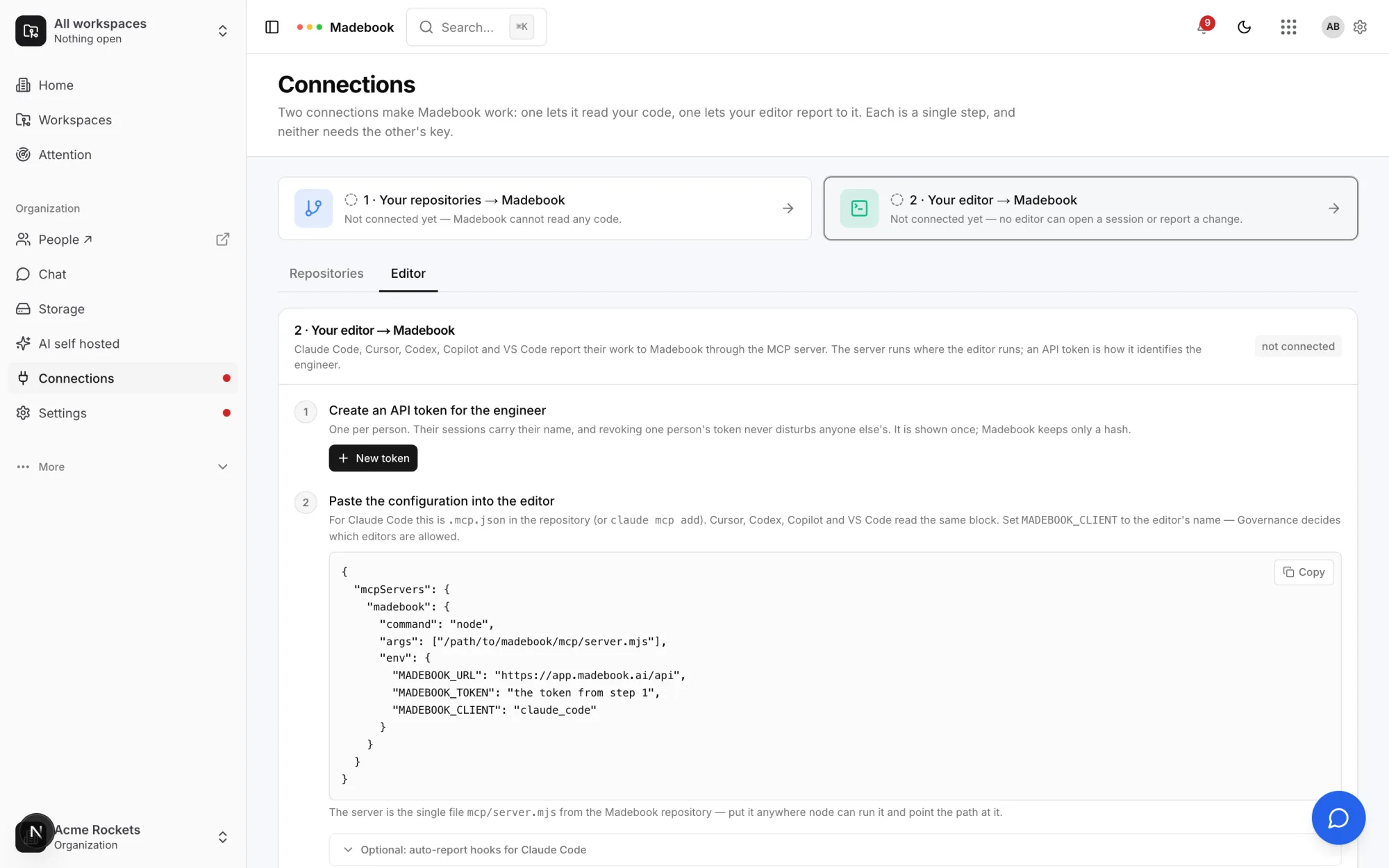
Claude Code, Cursor, Codex, Copilot and VS Code report their work to Madebook through the MCP server. The server runs where the editor runs; an API token is how it identifies the engineer.
Two steps, in order on the page:
- Create an API token for the engineer. One per person; their sessions carry their name, and revoking one person's token never disturbs anyone else's. It is shown once; Madebook keeps only a hash. The dialog is described in API tokens.
- Paste the configuration into the editor. The MCP block is shown with the Madebook address already filled in and, the moment a token is created, the token too. Copy takes the whole block. For Claude Code it goes in
.mcp.jsonat the repository root (orclaude mcp add); Cursor, Codex, Copilot and VS Code read the same block. SetMADEBOOK_CLIENTto the editor's name — Governance decides which editors are allowed.
Under the block, Optional: auto-report hooks for Claude Code unfolds a hook snippet that opens and reports sessions on the agent's behalf. Below that, every token the organization has issued is listed with its badges, its last use and Revoke. See Connecting a coding agent for the environment variables and the seven tools.
What the rest of the product says about this page
- Organization → Workspaces carries a callout, "Two connections make a workspace work", until both exist, naming which is missing.
- A workspace's Repositories page opens with a Reading from strip naming these connections, and its picker lists exactly what this page offers, with the source beside each repository.
- Start from a repository lists only what this page offers, and points here when nothing is connected.
- Organization → MCP tokens opens token creation and editor setup directly. The same controls are also under Connections → MCP tokens & editor.
Related
- Your first hour — the order to do all of this in.
- Connecting a repository — the per-workspace page.
- API tokens
- The pull request check — what the App makes binding.